
How-to
Before and after formats: side by side, slider or GIF
When to use a side-by-side image, a slider, a GIF or a video for before and after posts, and which sizes to export for Instagram, TikTok and Stories.
By Ahmet KütükUpdated 5 min read
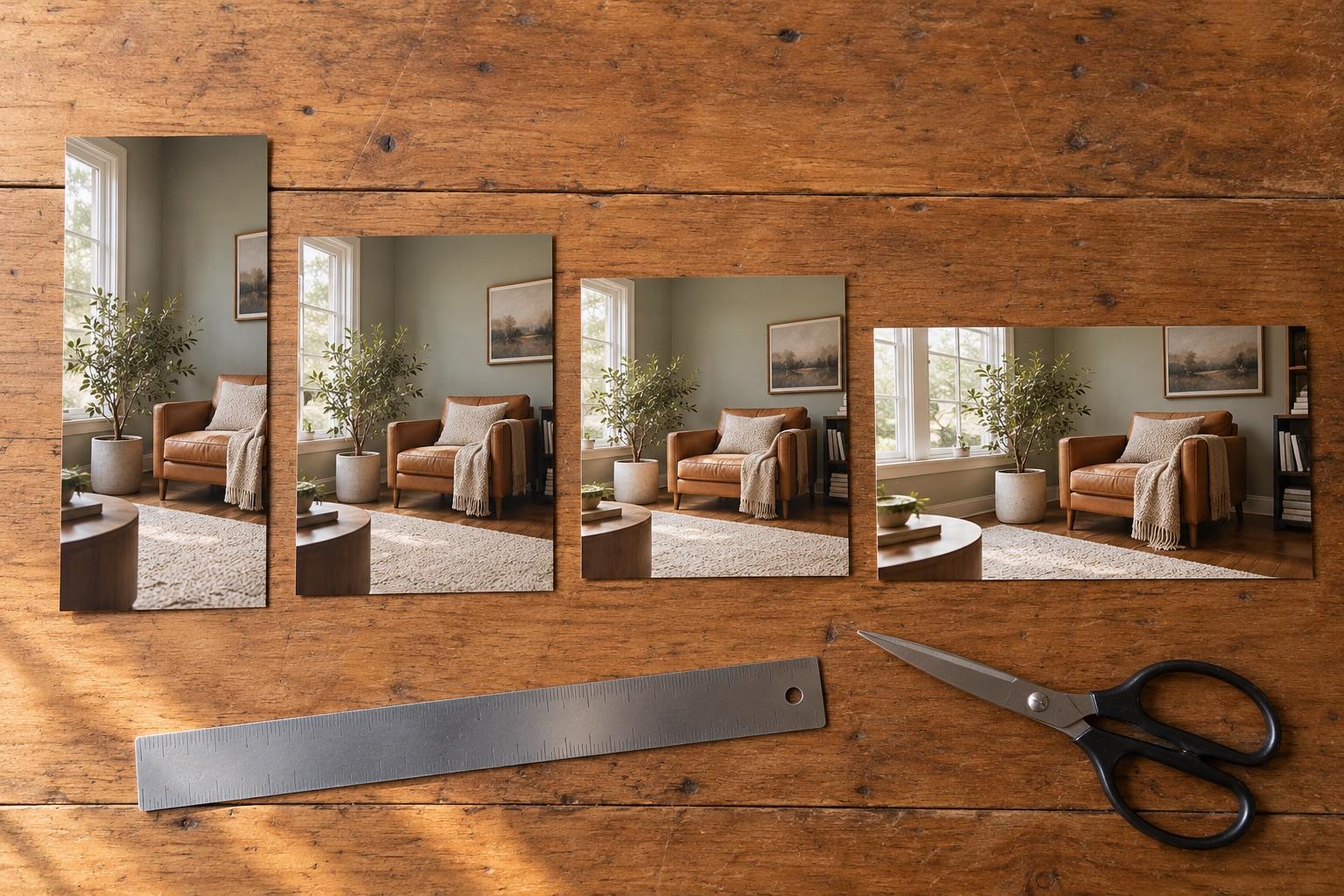
Use a side-by-side image when the change is big and you want it understood at a glance, a slider or swipe when the change is subtle, a GIF or slideshow for several stages, and a video for transitions. For Instagram feed posts export 4:5 (1080×1350); for Reels, Stories and TikTok export 9:16 (1080×1920).
The same two photos can look dramatic or flat depending on how you put them together. Choosing the format is mostly about one question: how big is the change?
The four formats
Side by side
Two photos next to each other (or stacked). Viewers see both at once and compare instantly.
- Best for: large, obvious changes, such as room makeovers, haircuts, weight change over months.
- Watch out for: small changes get lost, because the eye can't compare details across a gap.
- Layout: left and right for square and wide formats; top and bottom for tall 9:16 formats so each photo stays large.
Slider or swipe
The after photo is revealed over the before photo by a moving line. Because both photos occupy the same space, small differences jump out.
- Best for: subtle changes: skin texture, hairline, a repaired scratch, small proportion changes.
- Watch out for: it only works if the photos are aligned. A shifted photo makes the whole frame appear to move.
- As an image: a swipe GIF or a short video plays the reveal automatically.
GIF or slideshow
Several photos in sequence: week 1, 4, 8, 12.
- Best for: gradual change and long projects.
- Watch out for: more than six or seven frames gets slow; pick the milestones.
Video transition
Two or more clips joined on a matching frame.
- Best for: outfits, reveals and anything with movement. See 12 transition ideas.
Quick guide
| Change | Best format | Why |
|---|---|---|
| Big and obvious | Side by side | Understood in one glance |
| Small or detailed | Slider / swipe GIF | Same position makes details pop |
| Gradual, many steps | GIF or slideshow | Shows the path, not just the ends |
| Has motion or a reveal | Video transition | The cut itself is the payoff |
Sizes for each platform
| Platform | Format | Pixels |
|---|---|---|
| Instagram feed | 4:5 portrait | 1080 × 1350 |
| Instagram Reels and Stories | 9:16 | 1080 × 1920 |
| TikTok and YouTube Shorts | 9:16 | 1080 × 1920 |
| Marketplace listings, X, Facebook | 1:1 square | 1080 × 1080 |
| YouTube, websites, presentations | 16:9 | 1920 × 1080 |
Labels, dates and captions
- Before / After labels remove any doubt about the order.
- Dates or day counts (“Day 1”, “Day 90”) make progress believable and give context.
- A short caption like “Week 1 → Week 12” can replace a paragraph in the post text.
Keep text small and out of the faces. On 9:16, leave the top and bottom edges clear for the app's buttons.
Make the format work: line the photos up
Every format above depends on alignment, sliders most of all. If you're combining photos you already have, the free before and after maker lets you line them up with a see-through overlay before exporting a JPG or a swipe GIF.
If the after photo hasn't been taken yet, take it with the before photo as a ghost overlay. The MatchFrame app then exports side by side, grid, slideshow and GIF in all four formats, with labels and dates built in.
Take your reference shot today.
Free on iPhone and Android. No account needed.