
Compare before and after photos with a slider
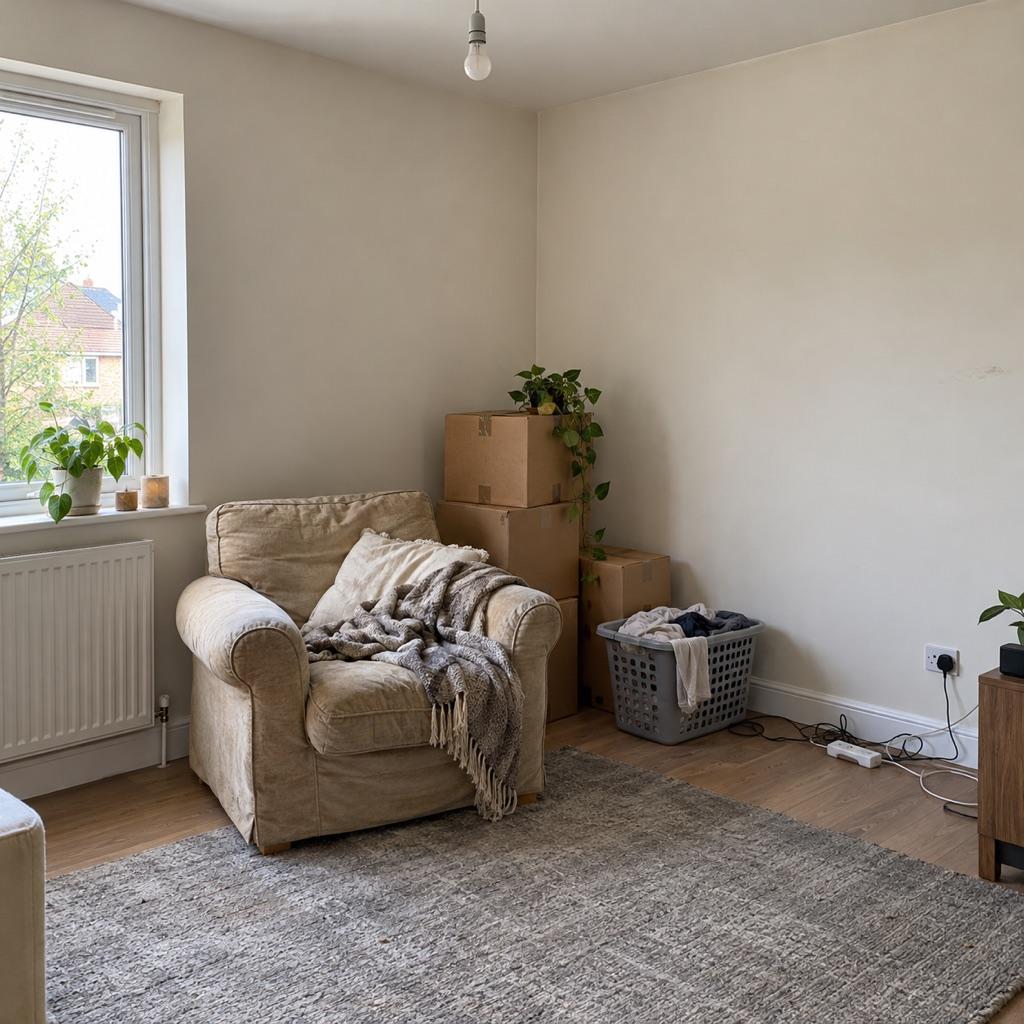
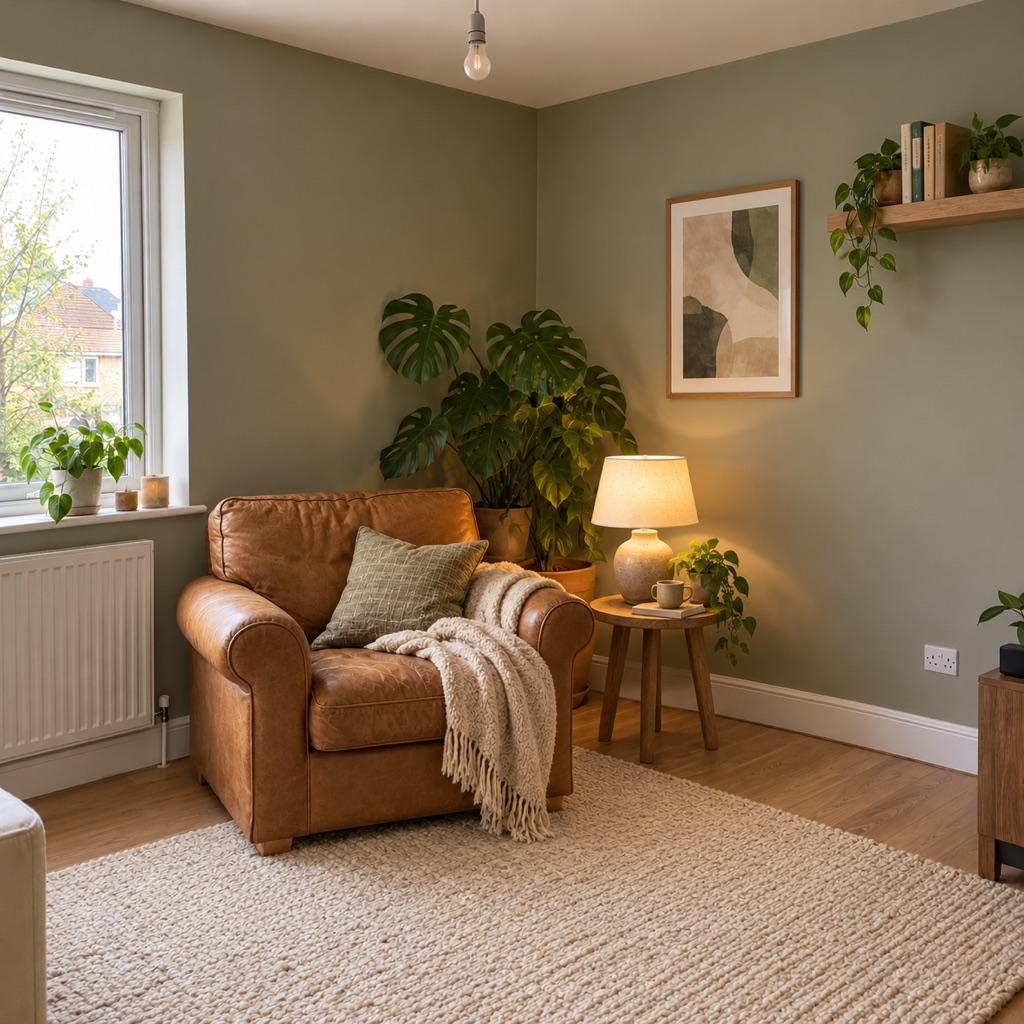
MatchFrame lets you compare any two captures in a project, either with a drag slider that reveals one shot over the other or side by side. Because both shots were taken with the ghost overlay, the angle and framing match, so what changes between them is the subject, not the camera.
How it works
- 1
Pick two shots
Choose a Before and an After from the project's timeline.
- 2
Slide or go side by side
Drag the line across to reveal the change, or switch to side by side to see both whole.
- 3
Export what you see
Send the comparison straight to export as a side-by-side image, a slider export or a GIF.
What's included
- Timeline of every shot
- Each capture is saved in the project with its date, so you can compare week 1 with week 12, not just the last two.
- Notes on captures
- Add a short note to a shot, such as a weight, a product or a change you made.
- Save & Compare
- After a new shot, one tap saves it and opens the comparison with your reference.
Good for
- Fitness progress photosTake gym and weight-loss progress pictures from the same spot, height and pose every time. Last week's photo as a ghost overlay replaces tape on the floor.
- Skincare before and afterSmall skin changes only show when light, angle and distance match. Use your last close-up as a ghost overlay to document a routine consistently.
- Room makeover before and afterShoot your renovation, decor or declutter project from the exact same corner. The before photo as a ghost overlay lines up walls, windows and furniture.
Questions
Can I compare more than two photos?
The compare view shows two at a time. To show several shots in one export, use a slideshow, GIF or grid layout.
Can I compare photos I didn't take with MatchFrame?
Yes, if you import one as the reference. For a fair comparison, take the new shot with that reference as the ghost overlay.
Other features
- Ghost overlay cameraMatchFrame shows your last photo or clip as a ghost on the live camera, so each shot matches its angle, distance and pose. Free on iPhone and Android.
- Export layoutsTurn aligned shots into a ready-to-post before/after: side by side, slideshow, GIF or grid, in 9:16, 4:5, 1:1 or 16:9, with labels, dates and your own text.
- Video transitionsFilm each clip with the last one as a ghost overlay, so outfit changes, room reveals and match cuts land on the same frame. Then merge them in MatchFrame.
Take your reference shot today.
Free on iPhone and Android. No account needed.